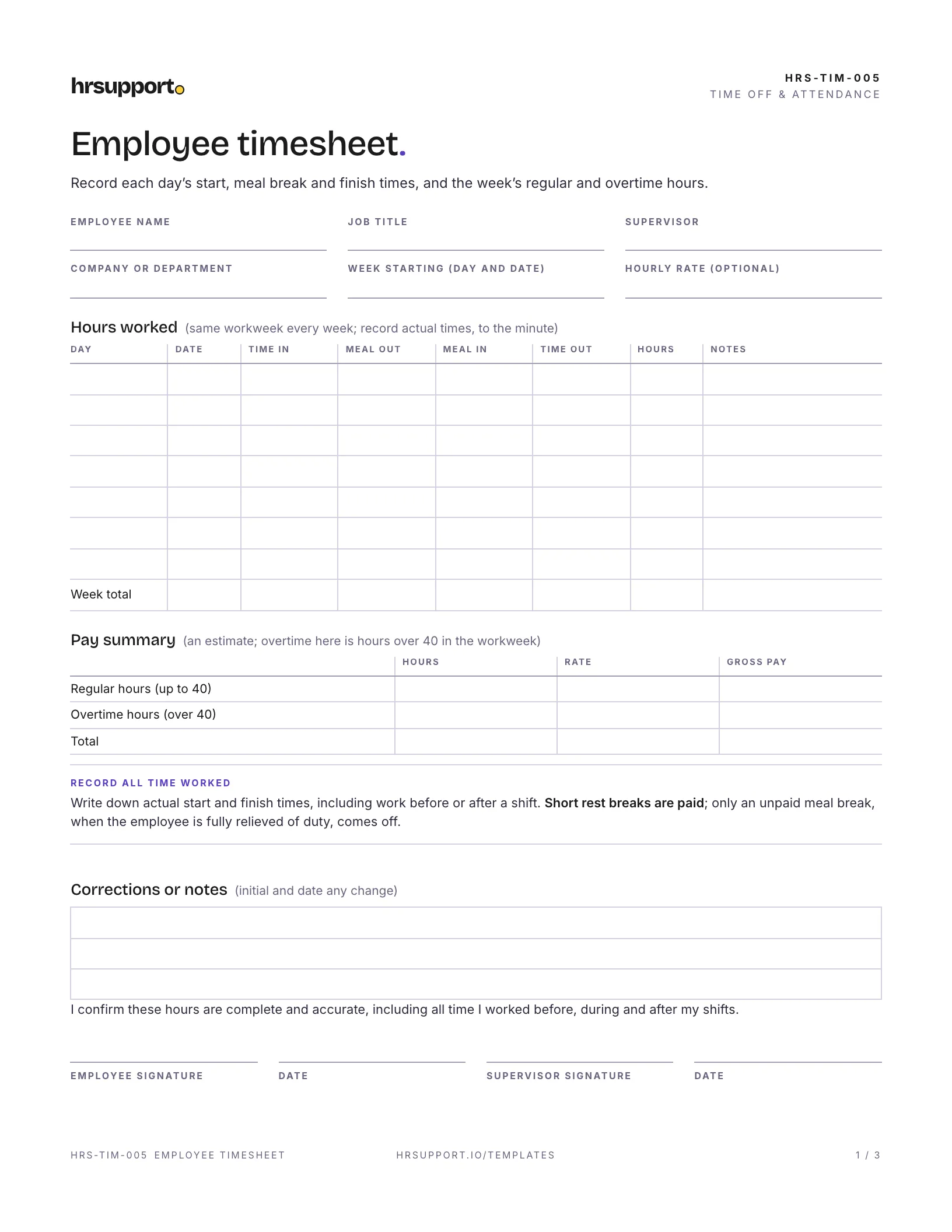
 Employee Timesheet TemplateDaily times in and out, regular and overtime hours, and sign-off for one week.Free
 Excel
Excel PDF
PDFA weekly shift schedule in Excel that does the math for you, and a printable PDF version. Type start and end times, and the hours, weekly totals and over-40 flag fill in.
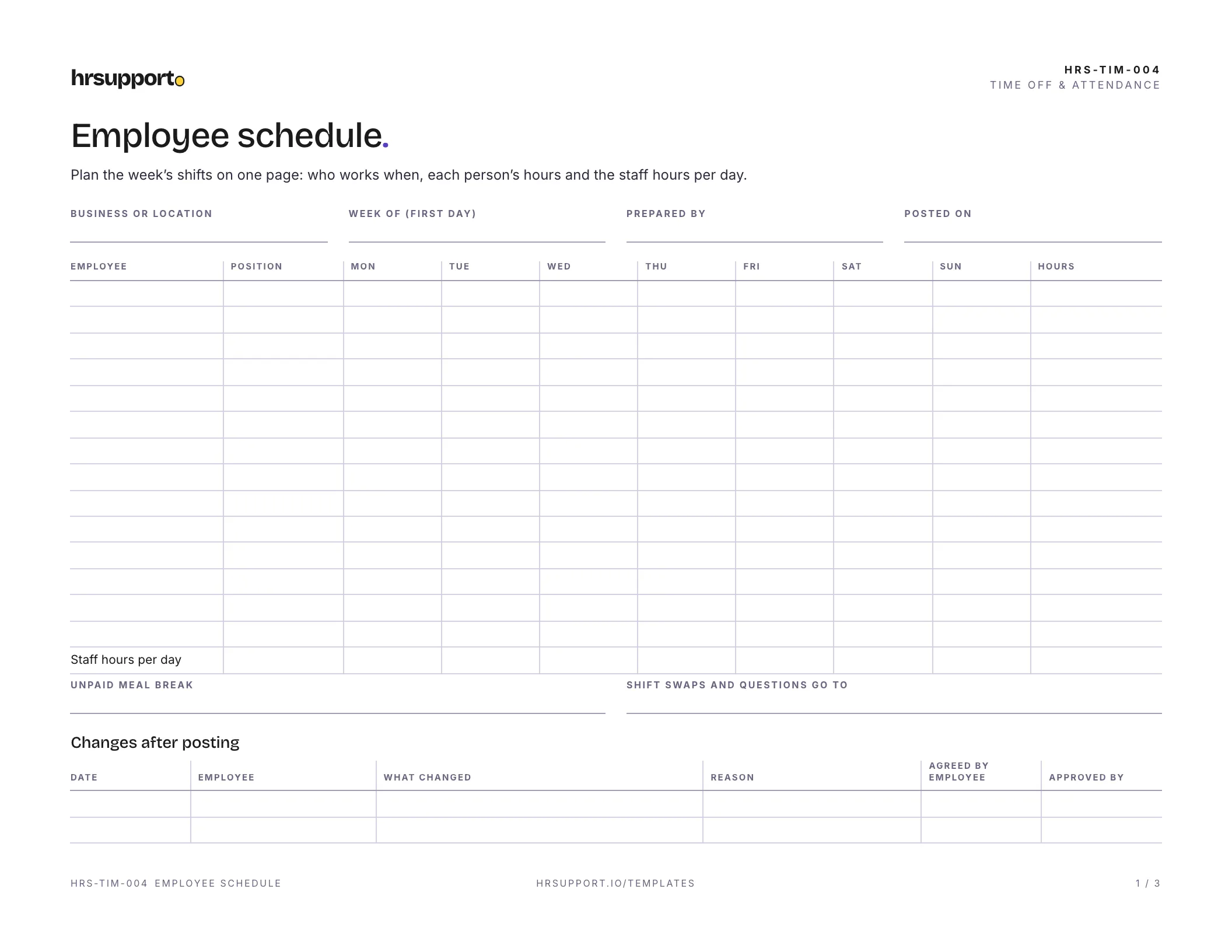
An employee schedule template lets you plan who works when, see each person’s hours and catch overtime before it happens. This free weekly schedule comes as an Excel workbook that does the math for you, and as a printable PDF. Type each shift’s start and end time, and the sheet works out the paid hours, weekly totals, staff hours per day and anyone scheduled over 40 hours.
An Excel workbook and a three-page PDF, sized for US Letter landscape:
The example is a week at a fictional bakery with seven employees. The manager works five 6:00 a.m. to 2:30 p.m. shifts, and the night baker works 10:00 p.m. to 6:30 a.m., which the sheet handles even though the shift ends the next day. Shifts over six hours have a 30-minute unpaid meal break taken off, so an 8.5-hour shift counts as 8 paid hours. One baker picks up an extra Saturday morning and reaches 44 hours, so the sheet flags her as over by 4.00. The bakery schedules 226 staff hours in the week, from 23 on Sunday to 38 on Wednesday. The schedule was posted two weeks ahead, and one change is recorded: a counter shift moved by an hour at the employee’s request.
A work schedule template, a staff schedule template and a shift schedule template all do the same job: they show who works which hours. This one is weekly, because that’s how overtime is counted under federal law and how most small teams plan. If you plan a month at a time, copy the Schedule sheet once per week in the same workbook. Each copy keeps its own formulas.
The Excel version is the one to use day to day. Save a copy for each week, so you have a record of what you planned. Print the PDF if you want a paper copy on the wall, or if you schedule by hand.
Overtime. Under the Fair Labor Standards Act, nonexempt employees get at least time and a half for hours over 40 in a workweek (DOL Fact Sheet #23). A workweek is a fixed, recurring 168 hours that can start on any day and at any hour (29 CFR 778.105). You can’t average two weeks, and you pay for the hours actually worked, so a schedule under 40 doesn’t settle it. Some states add daily overtime. California, for example, requires it for work over 8 hours in a workday (Labor Code 510).
Breaks. Federal law doesn’t require breaks, but short breaks of 5 to 20 minutes are paid work time (DOL: breaks and meal periods). A meal period can be unpaid only if the employee is completely relieved of duty (29 CFR 785.19). Many states require meal or rest breaks. California, for example, requires a 30-minute meal period for work periods over five hours (Labor Code 512). The DOL keeps a list of state meal period rules.
Predictive scheduling. A few states and cities have fair workweek laws for large employers. Oregon, for example, requires covered retail, hospitality and food service employers with 500 or more employees worldwide to give schedules in writing 14 calendar days ahead, with extra pay for many later changes (Oregon BOLI). Seattle has a similar rule for large retail and food service employers (Seattle Office of Labor Standards).
Records. The DOL says to keep work and time schedules, along with time cards, for two years (DOL Fact Sheet #21).
Get advice if you have employees in a city or state with a scheduling law, if you want to treat someone as exempt from overtime, or if your meal breaks often get interrupted by work. Those are the places where a schedule turns into back pay.
Not sure what your state requires for breaks or overtime? hrsupport.io gives HR answers for your state, with the law behind every answer.
Ready to use it? It’s free, and comes with a filled-in example.
Template questions
Download the workbook and open the Schedule sheet. Type the first day of the week, then each employee's name, position and shift times, such as 7:00 AM and 3:30 PM. The sheet works out the paid hours for each shift, each person's weekly hours and the staff hours for each day. Leave a day blank for a day off. The Example sheet shows a finished week if you want to copy its layout.
Unless a scheduling law covers you, pick a rule that fits your business and stick to it. One to two weeks ahead is common and gives people time to plan childcare and second jobs. Some states and cities set rules for large employers. Oregon, for example, requires covered retail, hospitality and food service employers with 500 or more employees worldwide to give schedules 14 calendar days ahead.
Under federal law, nonexempt employees get at least time and a half for every hour over 40 in a workweek. What counts is the hours they actually work, not the schedule, so check the timesheet too. Each week stands alone; you can't average two weeks. Some states add daily overtime. California, for example, requires it for work over 8 hours in a workday.
Federal law doesn't require breaks. If you give short breaks of about 5 to 20 minutes, they count as paid work time. A meal period, usually 30 minutes or more, can be unpaid only if the employee is completely relieved of duty. Many states do require meal or rest breaks. California, for example, requires a 30-minute meal period for work periods over five hours.
A schedule is the plan, showing who should work which shifts next week. A timesheet is the record of what actually happened, showing when each person started, took a meal break and finished. You pay from the timesheet, not the schedule. Use both, and compare them each week to spot late starts, early finishes and unplanned overtime.
Tell the employee as soon as you can and write the change down. First check whether a scheduling law applies to you. Some states and cities require extra pay for many changes made after a schedule is posted, mainly at large retail, hospitality and food service employers. Oregon and Seattle are examples. The change box on the template keeps a record of what changed and who agreed.
Free HR templates
Employee Timesheet TemplateDaily times in and out, regular and overtime hours, and sign-off for one week.FreeExcelPDF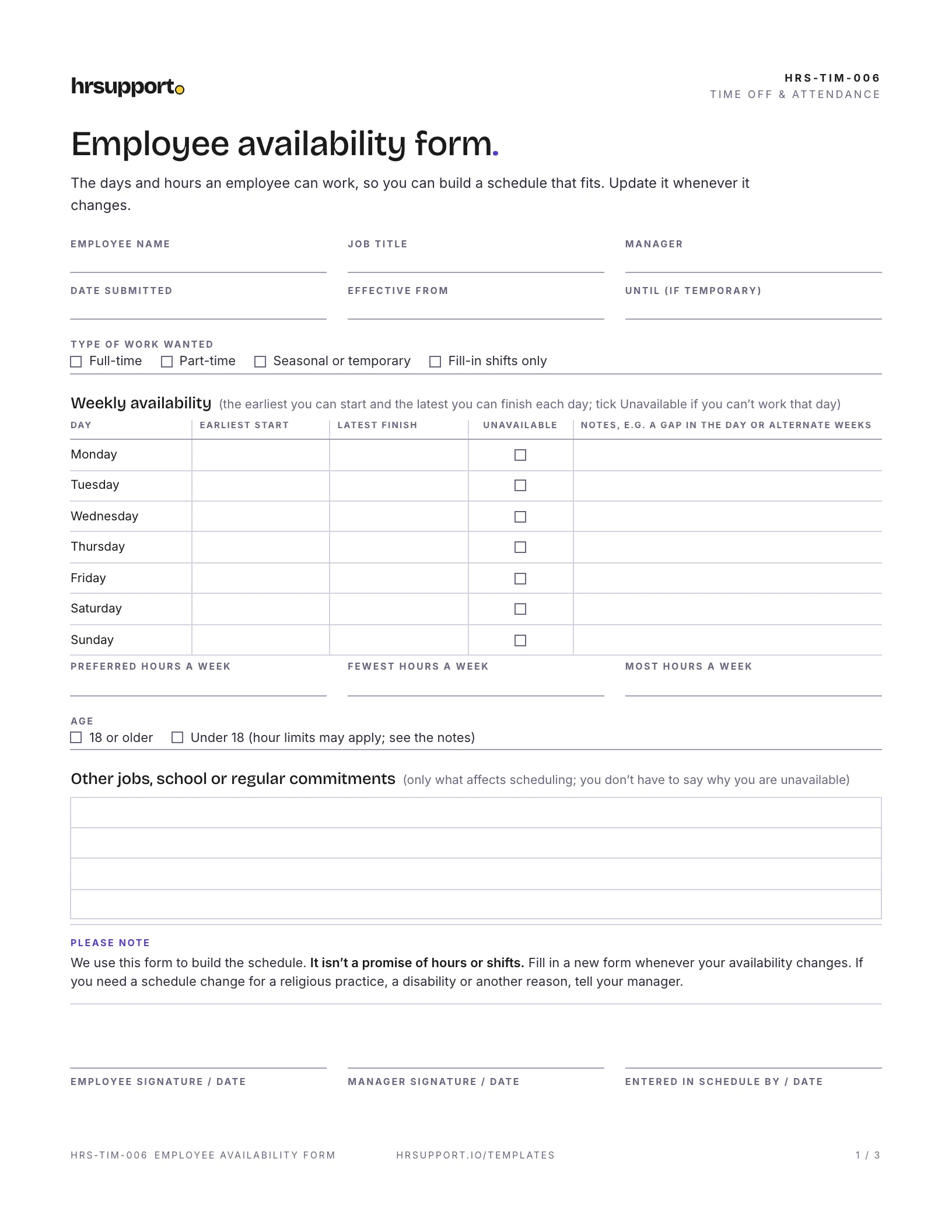 Employee Availability FormDay-by-day availability, preferred hours and other commitments on one page.Free
 WordPDF
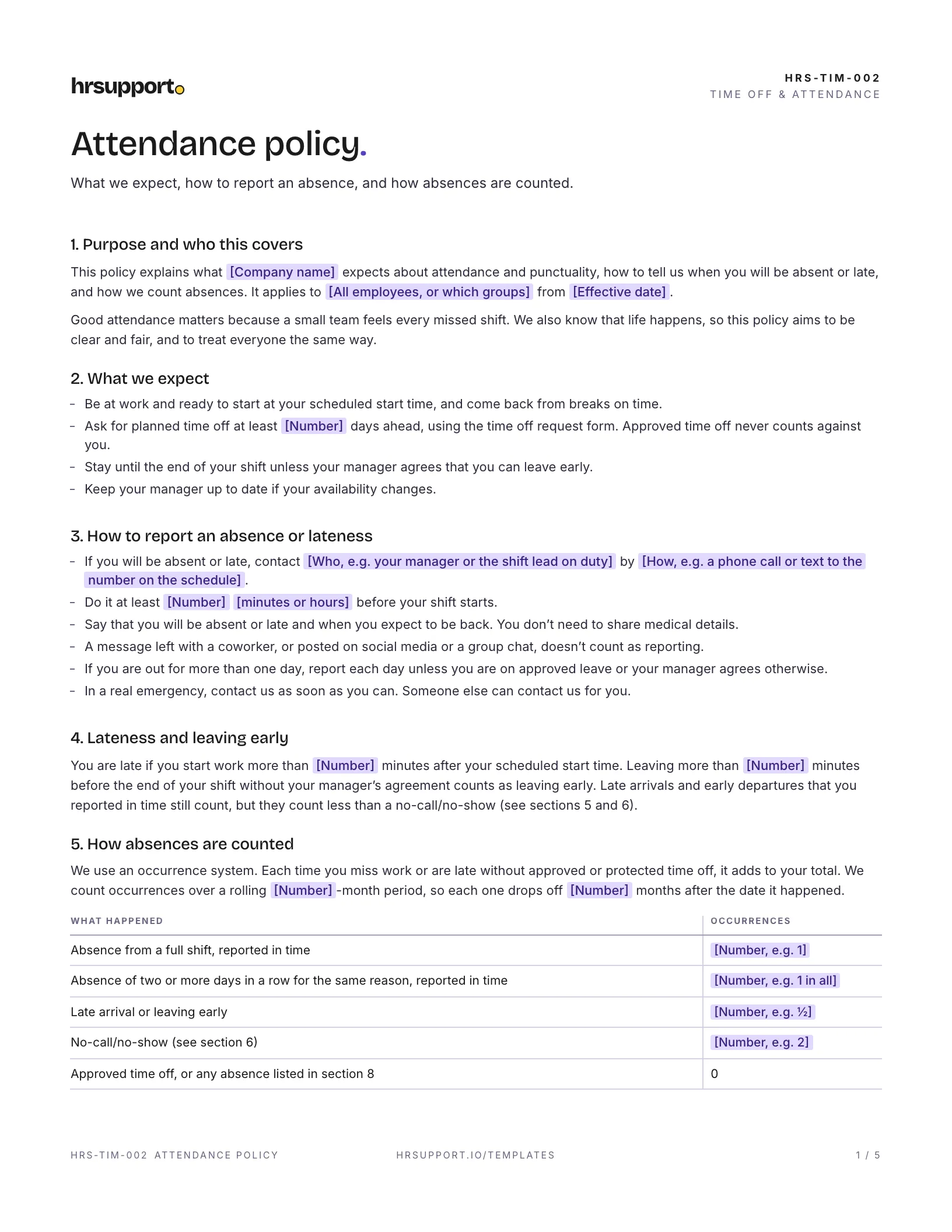 Attendance Policy TemplateCall-in rules, occurrences, no-call/no-show, discipline steps and a tracker.FreeWordPDF
Join the waitlist for early access and early-access pricing. It takes ten seconds.